
One visual language.
Matching controls and dialogs, readable status colors, complete version branding, and keyboard focus that stays visible as lists scroll.
MAXIMIZER FEATURES
Clear actions for every PC, roomier Modern Settings and desktop-native Linux file selection—with apps, Web Games, voice, files and controls along for the ride.
BALANCED STUDIO · CLIENT v1.0.276
The same navy-and-mint Modern theme, refined with featured PC artwork, quieter secondary wireframes, desktop sidebar icons and a four-field saved stream summary. Matching app/VM cards, portrait Web Games, Settings and transfer tools stay within reach.
Read the new features and corrections →New in Client276: a clear action for every PC. Secondary cards offer Open PC, Pair PC or Start PC for their current state. Open PC goes to View All Apps without triggering Direct Launch; PC options and … retain management. Checking and busy states are guarded, actions wrap and keyboard focus reaches usable controls. Modern Settings fills the available width, including 4K, while Classic keeps its two-column layout.
The larger normal window is retained. Modern starts at up to 1600 × 960 logical pixels, capped to the current screen’s available work area. The featured PC, monitor and accessories have room on typical desktops without automatically maximizing or entering fullscreen. Sizing is applied once; later manual resizing works normally. Smaller screens retain the compact layout. Classic and explicit maximized/fullscreen preferences keep their existing behavior.
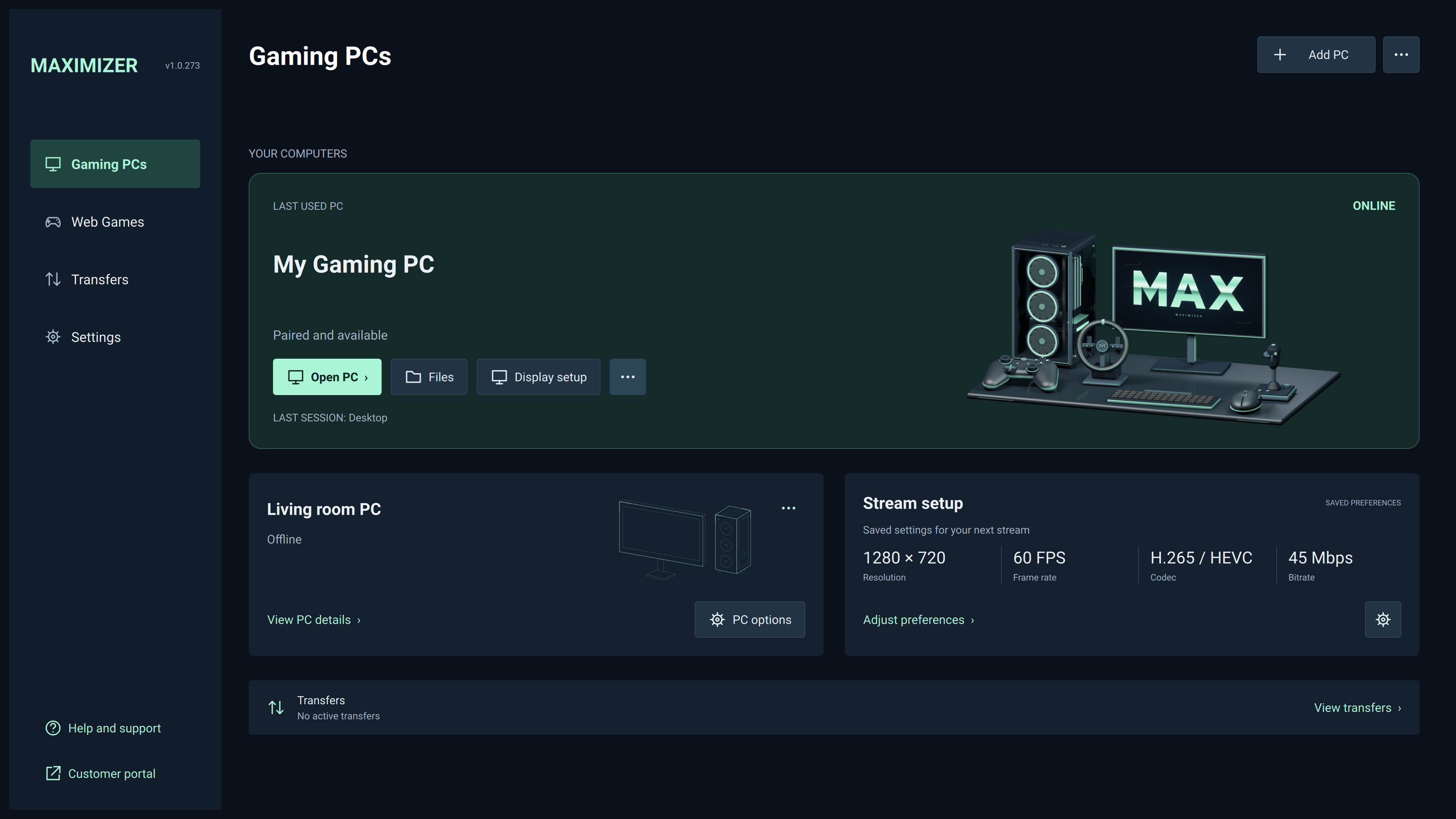
Reach your PC, files and Display Setup through icon-and-label actions. Secondary PCs use quiet wireframes and the same guarded options menu. Decorative artwork yields to controls when the window becomes compact.
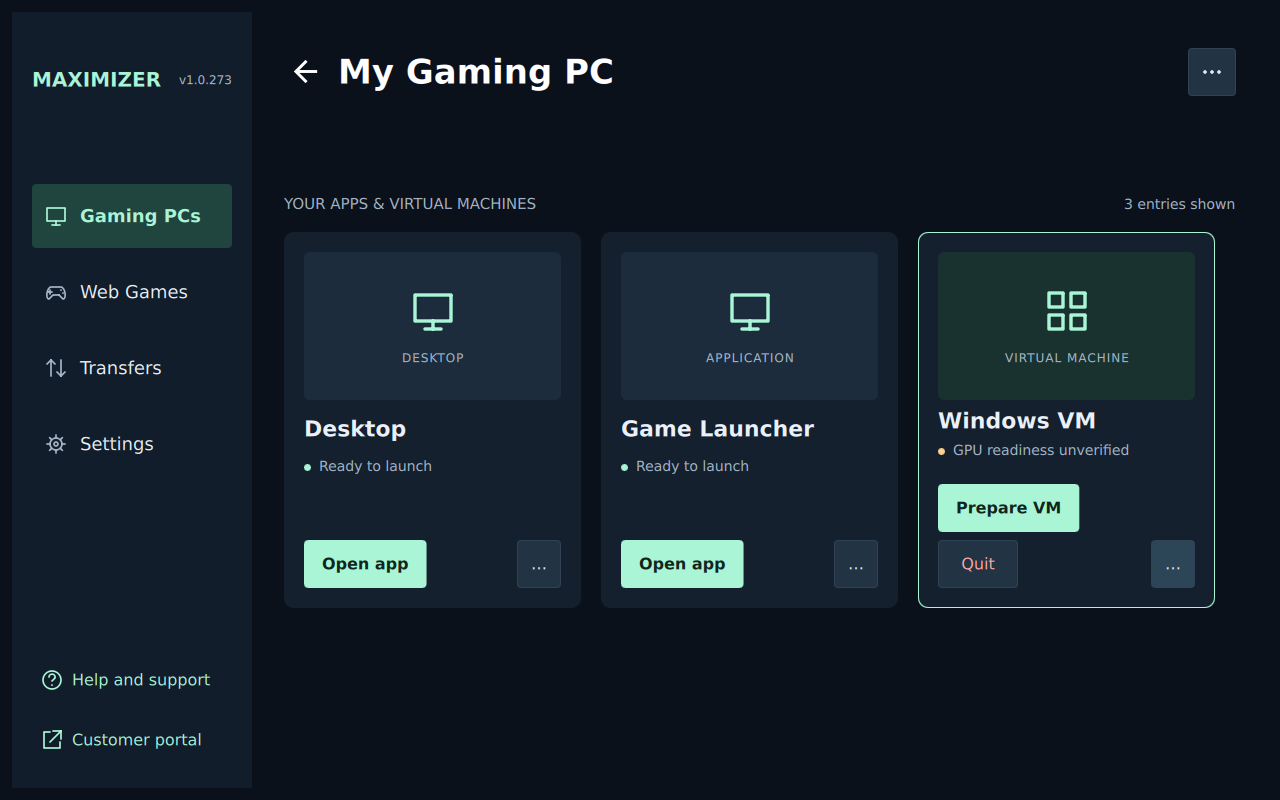
App, VM and menu availability follow current readiness. Sidebar icons provide clear landmarks, footer labels fit wider fonts and crowded VM controls reflow into two rows instead of clipping.
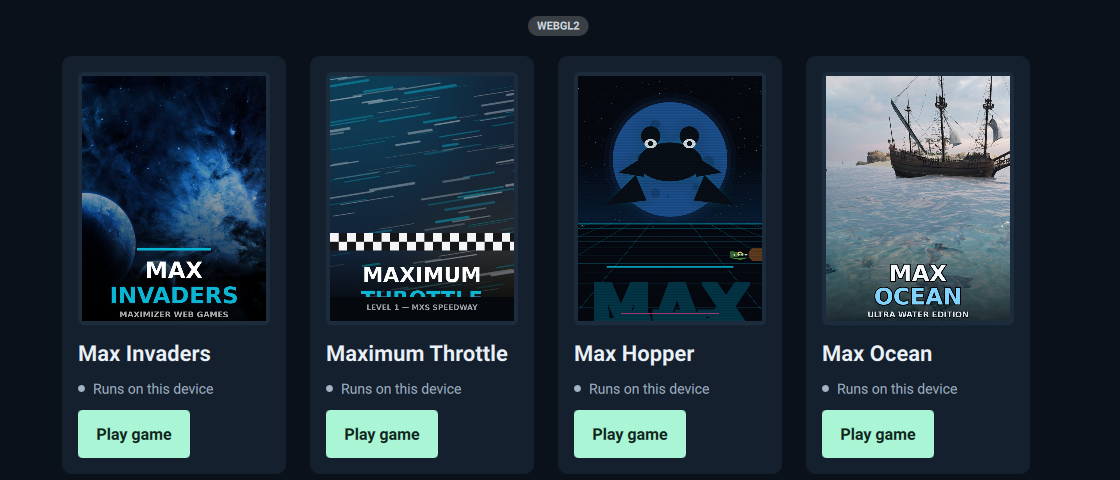
Web Games use matching 3:4 portrait covers and naturally sized cards, with readable titles and Play actions below. Classic keeps its original portrait layout; standard app/VM artwork keeps its normal dimensions.
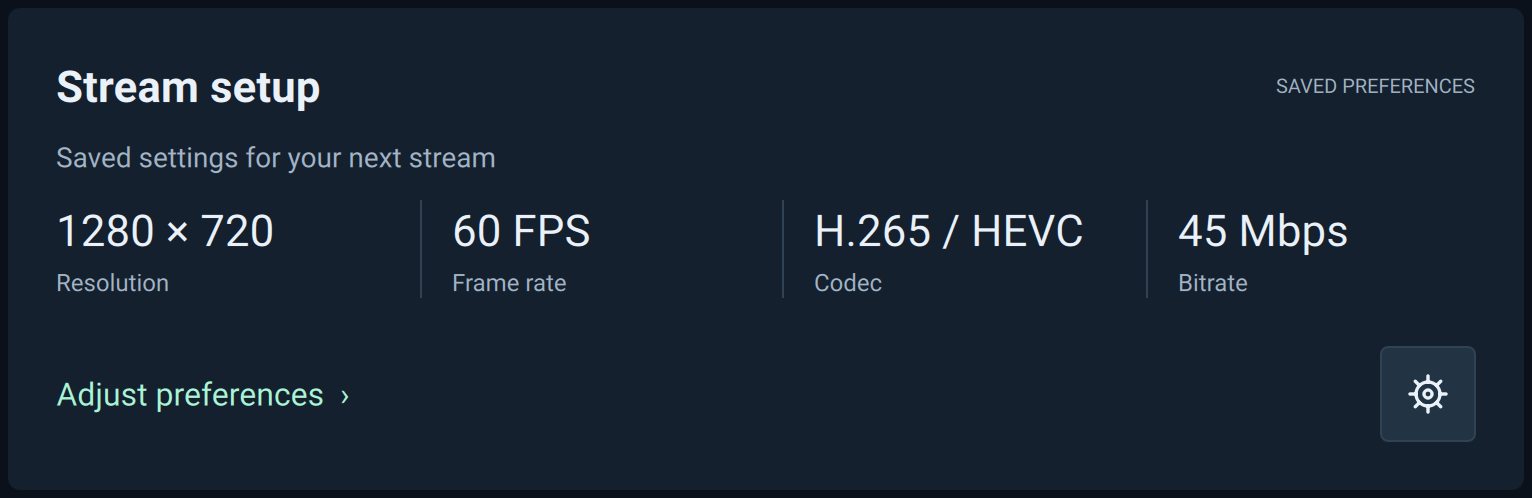
Resolution, frame rate, codec and target bitrate come from your saved preferences. Automatic codec remains Automatic, and bitrate is shown in Mbps. These are not live measurements; per-PC Display Setup may choose another mode. The fields reflow to two or one column in smaller windows.
Matching controls and dialogs, readable status colors, complete version branding, and keyboard focus that stays visible as lists scroll.
App-switch approval follows the selected app’s identity, rechecks availability and rejects stale quit targets. Context menus wait until their component is ready.
Pairing, Display Setup, microphone, clipboard, transfers and VM workflows keep their existing controllers. Modern is a presentation choice.
Actual Linux development-verification captures with example PCs and saved preferences; original captured build numbers are retained. The dashboard, apps and setup-detail pictures show the refinement now released in Client274. Artwork is decorative. Open any image for full size. Web Games run on the device running the Client and retain their GPU-intensive launch confirmation.
INTRODUCED IN CLIENT269 · INCLUDED IN v1.0.276
The DEB, AppImage and Flatpak Linux x64 packages share one checked video policy: prefer Vulkan Video hardware decoding and Vulkan presentation when the GPU, driver and requested codec support them. No launch override is normally needed.
Check actual H.264, HEVC and AV1 video capabilities, format, resolution and presentation compatibility. Supported AMD, NVIDIA and Intel devices can use Vulkan Video; graphics support alone is not treated as video-decoding support.
The patched VA-API/EGL fallback can queue GPU-side fence waits instead of blocking the rendering thread until decoding finishes. Required synchronization stays in place; unsupported or failed fence operations retain the original CPU wait.
Fixes AV1 skipping hardware frame-pool initialization. A failed Vulkan decoder or presenter is excluded for that stream before recreation, preventing repeated selection of the same failed path. Compatible VA-API/EGL, legacy X11 VDPAU and CUDA/NVDEC fallbacks remain.
Approximately 96.5% lower VA-API/EGL rendering-stage time in the matched GPU-fence comparison: HEVC 4K60, AMD RDNA4, Linux/X11, V-Sync off. This measures the optimized fallback; the Vulkan Video comparison reported 0.14 ms with V-Sync off and 0.17 ms with it on.
Pre-release builds used the same implementation. These CPU-side stage counters are not physical input-to-display latency. V-Sync-on EGL still had additional swap wait, and results vary by hardware, driver and display timing.
See the complete comparison and verification scope →All three development formats passed 30 AMD/X11 streaming cases with 12,210 valid sampled frames. Physical NVIDIA/Intel, native Wayland, HDR and ARM board acceptance remain separate. Explicit decoder choices and negotiated formats are retained; incompatible HDR fallback reports an error rather than silently disabling HDR.
INTRODUCED IN CLIENT268 · RETAINED IN v1.0.276
Orange Pi 5 / RK3588S has a native ARM64 Client package targeting Armbian 26.8.1 GNOME / Ubuntu 26.04 Resolute and vendor kernel 6.1.115. Install the Client on the board and connect to your Gaming PC Host. Client v1.0.276 retains this separate distro-based ARM64 build.
Full Qt6/FFmpeg/EGL desktop build, WebEngine and Multimedia, with distro QtKeychain and the matching natively rebuilt SonoBus microphone helper. Choose the separate ARM64 DEB, not the x64 Ubuntu/Mint package.
The original Client268 ARM64 qualification passed 20 component suites / 498 results, software H.264/HEVC/AV1 controls and fresh installed-GUI startup. Current releases repeat the native build, software and installed-GUI gates; exact per-release checksums and provenance are public.
RK3588S hardware decoding, Mali/DMA-BUF, physical audio/input and sustained streaming still need on-board testing. Begin with 1080p60 H.264/HEVC and record the actual decoder. WebEngine compilation does not establish Mali WebGPU support.
Hosted software checks are not physical Orange Pi / Armbian vendor-kernel acceptance. The package does not install board drivers; hardware acceleration depends on the board image and graphics/media stack.
Get the Orange Pi 5 / ARM64 build → · Installation & verification details →Forward your local microphone to the host for voice chat and applications running on your remote PC. The managed desktop helper uses a one-way microphone path, with a convenient mute toggle.
Persistent device identity lasts for the audio-server lifetime. An audio-service restart or reboot can recreate the device.
With desktop Client v1.0.276 and Host v1.0.268, send files and folders to your Gaming PC or download them back. Choose Send File… or Browse Host files… from the paired PC’s menu.
New in Client276 on Linux: Browse… and Folder… prefer the desktop’s standard file chooser through the XDG portal, across native packages, AppImage and Flatpak. Cancel stays quiet; selected files return to review before upload. If the portal is unavailable, the built-in fallback browser fits the window with wrapping actions, elided paths and a scrolling file list. Desktop backend availability and existing sandbox permissions still apply. Read the picker improvements →
To download from the Host, enable Client Downloads, choose its allowed folder in Network settings and restart the Host. Uploads and downloads are separate settings, disabled by default.
Encrypted-home downloads fixed in Client265 and retained in276: native/DEB downloads work in tested eCryptfs-encrypted folders, with encrypted staging, checksums and restart recovery. Keep both and Skip work; unsupported existing-file replacement asks for a different explicit choice. The tested document-portal-over-eCryptfs combination remains unsupported. Read the transfer fixes →
Choose no configured per-file size cap: with Client276 + Host268, set File Transfer Max Size to 0 under Host Configuration → Network, save and restart. The default remains 100 MiB; disk space, filesystem, session and snapshot limits still apply. File size and transfer speed are separate settings. A real 12 GiB + 123-byte upload and download passed full checksum verification.
Earlier Flatpak folder-download fixes retained: Choose… works with the tested ordinary document portal. Use Locate destination… to reselect the original folder if access expires, then Resume. Ownership checks, checksums and replacement backups protect recovery. Read the Client264 fix →
Use the current desktop Client and Host for the complete tools; Android is separate. Completed files are checksum checked. Folder operations are per file, not one all-or-nothing change. Real GTK/document-portal recovery and native Windows/macOS storage checks passed; full packaged Windows/macOS GUI acceptance remains separate.
Read the release notes & easy setup guide →Copy text on your local device, focus the streamed application, and use the paste shortcut. With Client v1.0.276 and Host v1.0.268, Maximizer transfers the text to the Host’s native clipboard and pastes after an authenticated readiness reply.
Native Host publication supports X11, supported Wayland data-control compositors and interactive Windows sessions; macOS Host publication is not implemented. Windows runtime acceptance remains separate. This is plain-text transfer, not bidirectional clipboard synchronization. Use Send File… for files. On macOS keyboards, Alt is Option.
Choose the input that fits what you are doing: gamepad controls for a game, or mouse and keyboard for your desktop and applications.
Use the Client’s input and display settings to tailor the session to your device.
Available controls depend on the client platform, controller and host configuration.
CLIENT v1.0.276 + HOST v1.0.268
Choose Automatic matching or Manual setup after pairing in the desktop Client. Current releases retain the native-pixel detection, monitor selection, supported-mode-list and Windows 59.94/60 Hz improvements. Change the choice later through the PC’s Display Setup… menu.
Move the Client window to the screen you want to use. Automatic matching uses the monitor’s native pixel mode instead of multiplying rounded desktop dimensions, at 60 Hz on the Host and 60 FPS in the stream.
The selected monitor is checked through startup. Setup refreshes on movement and Retry; Manual presets keep their monitor labels and your saved preferences.
If the exact resolution is unavailable, the Client lists supported nominal 60 Hz modes, prioritizing the closest aspect ratio and then pixel area. Host265 prevents refresh variants from crowding valid resolutions out of the list and verifies Windows 59.94/60 Hz timing.
Approve a fallback explicitly and optionally remember it for this screen and Host capabilities. Incomplete mode inventories require Manual setup.
Each new stream rechecks the selected display. Already matching modes are left alone, and another active or pending stream blocks a mode change.
No matching timer changes resolution mid-stream. Cancelling after the Host has accepted a request cannot undo an already applied mode change.
Automatic Host control supports Windows mode-only changes through the existing VDD/GPU readiness gate, and native X11 with one active independent, unrotated output. Wayland, macOS Host, ambiguous layouts and VM applications proxied through the physical Host use Manual setup. A separately paired guest Host can provide its own Display Setup.
This is a desktop Qt Client feature; Android is separate. Main-display selection, topology, HDR and VDD driver configuration remain manual. Private tests cover scaled/mixed-output X11 and fractional-Wayland Client detection and 2560 × 1600/60 FPS streams. Hosted Windows checks verify native monitor identity. Physical Windows/VDD application, macOS and individual device/driver combinations remain separate acceptance work. Native Wayland windowed placement is compositor-controlled.
H.264 · H.265 / HEVC · AV1
Maximizer supports three major video codecs. The host must be able to encode the selected format, and the client must be able to decode it.
A widely supported starting point for streaming across a broad range of devices. A useful choice when you are getting a setup connected for the first time.
Efficient compression for supported hardware, with HDR available on compatible host and client combinations.
An efficient option for newer compatible hardware. Hardware AV1 encoding and decoding can help deliver high-quality streaming at a lower bitrate.
Resolution, frame rate, HDR and codec availability depend on the host GPU, client decoder, drivers, display and network. Hardware-accelerated decoding helps keep the client responsive.
Client276’s DEB, AppImage and Flatpak retain Client269’s Vulkan Video decoding and presentation preference on compatible GPUs and codecs, with patched VA-API/EGL, legacy X11 VDPAU and CUDA/NVDEC fallbacks. Choose Automatic or hardware decoding in the Client settings on a supported GPU. Explore the common Linux video policy →
EARLIER FLATPAK IMPROVEMENT · CLIENT258
Client258 introduced automatic Vulkan Video hardware decoding and presentation for compatible Linux Flatpak systems. Client v1.0.276 retains that improvement and Client269’s extension of the shared policy to DEB and AppImage. The historical comparison below is separate from269’s GPU-fence measurements.
Approximately 93% lower in the matched 4K60 HEVC comparison on AMD RX 7900 XTX/Linux X11. The new path avoids the VA-API/EGL handoff while retaining required GPU synchronization. Launch the current Flatpak normally; no workaround variables are needed.
This is Client rendering-stage timing. Complete input-to-screen latency also includes capture, network, decoding and display, and results vary by hardware, driver, codec and display timing.
See the performance results & all recent fixesVULKAN VIDEO · SUPPORTED LINUX HOSTS
Maximizer Host includes a Vulkan Video encoder with low-latency and ultra-low-latency tuning. On supported GPUs and drivers, it provides hardware encoding paths for H.264, H.265/HEVC and AV1.
Choose Vulkan when optimizing a compatible Linux host for responsive streaming, and compare the results with the other available hardware encoders.
vk_tune = 2vk_tune = 3Low-latency presets can trade picture quality for encoding speed. Vulkan requires Vulkan Video encode support in the host GPU, driver and Host build.
End-to-end latency also includes capture, network delivery, decoding and display. The fastest encoder varies by hardware and workload.
THE REST OF YOUR PC EXPERIENCE
Useful controls for picture quality, troubleshooting, cloud PCs and advanced host setups.
4K and high-refresh streaming options, HDR, and YUV 4:4:4 on supported encoder/client combinations. Tune resolution, frame rate and bitrate to your display and connection.
Desktop Client v1.0.276 retains Client267’s native macOS Keychain fix so successfully saved credentials survive a Client restart. It reports unsuccessful saves, uses your latest session-only login and prevents older combined credentials returning after a confirmed clear.
If the old build lost your credentials, enter and save them again using Manage Credentials after upgrading. macOS may ask for its usual Keychain unlock/access approval.
Windows Credential Manager and Linux encrypted fallback remain supported. A failed save can leave credentials available in memory for the current process; retry saving for persistence. Android is separate.
Read the credential fixClient v1.0.276 retains Client262’s fix for the crash when adding a Host with another saved PC already listed. It also passes the completed Host identity into Display Setup after PIN or username/password pairing, avoiding an incorrect “PC no longer available” message.
These are desktop Client fixes. Install the new Client on the device you play on.
Read the pairing fixesClient266’s initial Maximum Settings Start and Pair login panel explains the default 2-hour automatic Gaming PC shutdown. If needed, extend the limit up to 12 hours by changing the setting at login.maximumsettings.com.
Shown once per fresh Client profile. Cancel/retry, later connections and restarts do not repeat it; already-paired profiles stay silent. The website is where you change the limit—the Client does not change it automatically.
Read the notice detailsClient266 fixes the shutdown/six-minute tooltip appearing on green-ready Bare Metal apps. Mouse hover and keyboard selection now follow the app’s actual unavailable state, and available-state refresh promptly dismisses the warning.
Passthrough-unavailable warnings and existing VM/GPU ownership, launch and cooldown guards remain in place. This is a desktop Client correction.
Read the tooltip fixHost v1.0.268 includes Host264’s fix for Moonlight Android 12.2 and Maximizer Android crashing when opening a paired PC’s application list. Empty lists and hosts with VM support disabled are covered.
Install the updated Host on the Gaming PC. No new Android APK or application-list reset is required for this protocol correction. Desktop VM metadata and authentication are preserved.
Read the fix detailsStereo and supported surround-sound configurations, with adaptive playback buffering that fixes recurring dropouts on affected large-batch audio backends. Client257’s correction covers reproduced DEB/Flatpak playback issues, including PipeWire batching, and is included in the current Client.
Normal small-buffer behavior is retained and learned buffering is bounded. Microphone forwarding remains a separate audio path.
See performance information such as frame rate, latency and dropped frames while tuning your connection.
Pair with a PIN or supported host credentials and remember trusted hosts for later connections. The desktop Client’s Cancel action stops pending pairing and retries, with late-response protection.
Client v1.0.253 and later check for newer compatible releases at startup across Windows, macOS, DEB, AppImage and Flatpak packages. Client268 adds a separate Armbian Ubuntu 26.04 ARM64 channel. The update button shows the available version and opens the matching download when clicked.
DEB/Flatpak users on v1.0.250–v1.0.252 must install the current Client manually once; the old disabled checker cannot announce this first upgrade. Updates are not installed automatically. AppImage version comparison is corrected, and Linux Mint selects the x64 DEB channel. Android has a separate implementation.
Client v1.0.250 and later start saved Gaming PCs in the background. Open Web Games during the countdown, then choose Connect to Game PC from the persistent ready notification when you want to switch.
Readiness does not interrupt your game or start a stream. In desktop Client v1.0.251, Stop opens the Hard Shutdown confirmation; Keep Starting leaves startup running. Web Games require a working Qt WebEngine package.
Desktop Client v1.0.252 opens a GPU-intensive showcase dialog before launching catalog games tagged WebGL, WebGL2 or WebGPU. It explains that these games use the GPU of the computer running the Client and may need a high-end GPU.
Choose Continue on this device or Cancel. For demanding games, install Maximizer Client on the Gaming PC, launch the Web Game there, then stream that PC to your local device. Each fresh GPU-title launch prompts again; Canvas games launch directly. The warning uses game metadata, not a GPU benchmark.
Client v1.0.260 makes Start Gaming PC the offline-menu default. While Start is disabled, the menu opens with no selected action instead of jumping to Hard Shutdown. Deliberate Hard Shutdown PC… selection or startup Stop still opens the confirmation; normal Shut Down PC remains available.
The warning explains immediate power loss to the PC and its VMs, lost unsaved work and possible file-system or OS damage. The selected PC is checked before dispatch; request acceptance does not mean power-off is confirmed. Check the control panel before restarting.
Maximum Settings integrations include remote power-on, host discovery, usage information and account shortcuts for subscribers.
Cloud-PC service is separate from the free software download.
On configured Linux hosts, prepare a virtual machine from the Client, check GPU/service readiness, then choose Desktop or an app. Stop and Force Stop controls are available for VM management.
Advanced setup; requires compatible host hardware, virtualization configuration and host components.
Host v1.0.258 and later show listener availability, initialization progress and local capture status separately in Troubleshooting. The authenticated management interface starts before graphics initialization.
When a display appears late, retrying the stream can rediscover it using the existing desktop-session settings. VM-owned GPUs are reported separately from capture failures.
Host v1.0.259 and later coordinate display-setting changes with capture and wait for a stable wired virtual-display GPU mapping. An unavailable selected display is rejected rather than replaced with another screen.
The new Display Setup flow can request an approved mode-only change through that safety gate. Main-display selection, topology and HDR remain manual in Windows; background VDD layout and restoration protections remain in place.
The current x86_64 Flatpak includes the same pinned Qt6.10/Dawn-enabled WebEngine toolkit used by the DEB. Corrected capability detection checks for an available WebGPU adapter and falls back after a 15-second deadline.
Software WebGPU compute/render acceptance passed. Actual graphics capabilities still depend on the device and driver; WebGPU-only games need compatible support, while games with a WebGL fallback can use it. Test-only software-driver overrides are not shipped.
These features describe the desktop Client and supported Host configurations. Availability varies by platform and package. The published Android APK is a separate root-variant build. Each download shows its own version and package notes.
Find the Client for your device and the Host for your gaming PC.