
Designed around your PCs.
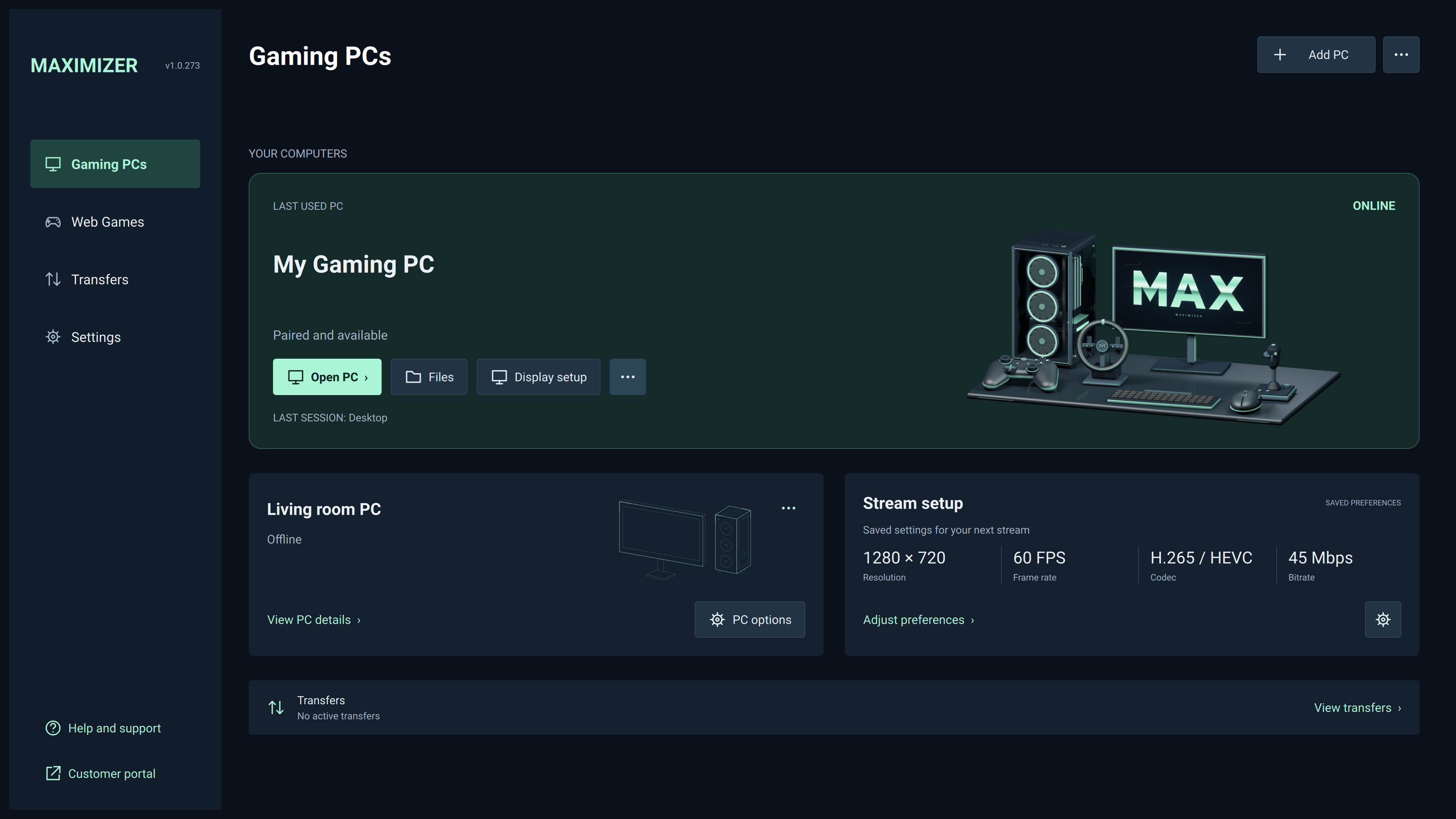
Featured artwork, quiet secondary wireframes and icon-and-label PC actions, with your familiar navy-and-mint colors.
Your games and desktop, on your favorite screen. Browser streaming and optional joysticks, wheels and pedals now join the current Maximizer releases—with Modern and Classic, your files, and your familiar PC controls.
Free to download / Windows, macOS, Linux & Android
CLEARER PC ACTIONS · CLIENT v1.0.279
Secondary cards now offer Open PC, Pair PC or Start PC for their current state, with PC options close by. Open PC shows that PC’s app list without starting a saved Direct Launch app. Modern Settings uses the available width, including 4K. Balanced Studio artwork and saved resolution, frame rate, codec and target bitrate stay together.
The larger normal window up to 1600 × 960 logical pixels still fits the current screen and respects later resizing.
Explore the Modern interface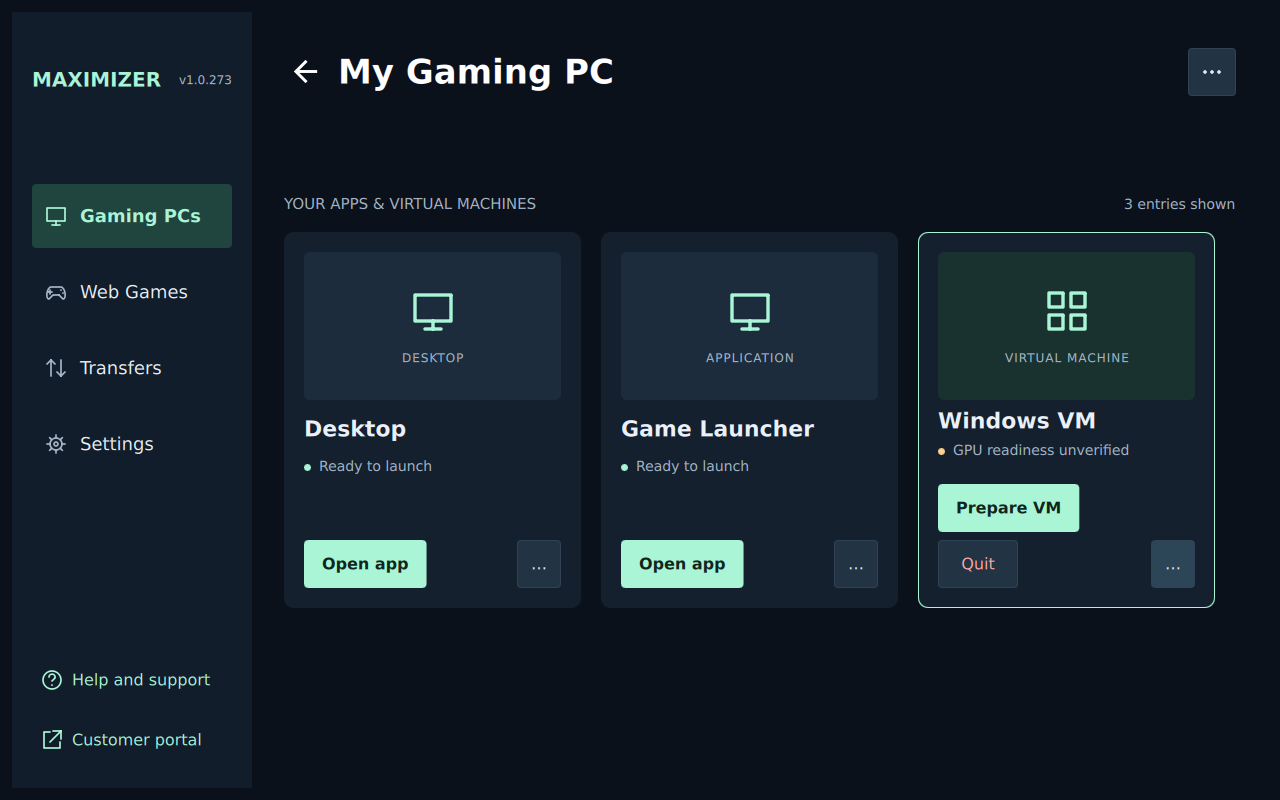
Sidebar icons help you find your way. Readiness labels guide the next action, and crowded VM controls reflow with their complete labels and usable hit targets.
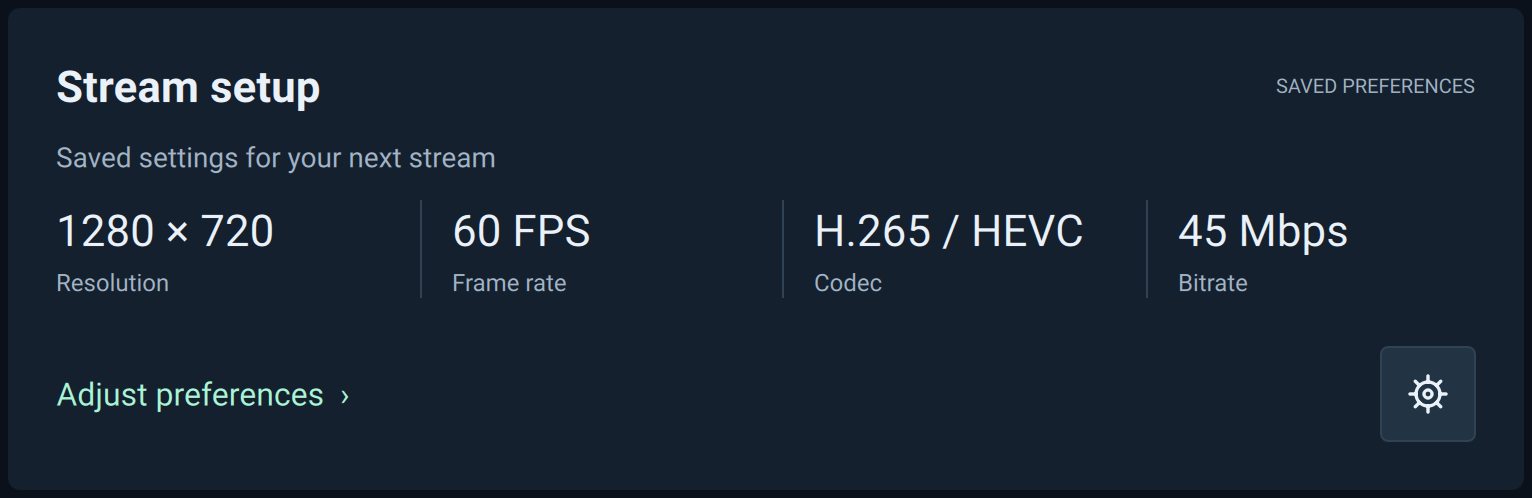
Resolution, frame rate, codec and target bitrate in one card. These are saved preferences, not live telemetry. Automatic codec stays Automatic; per-PC Display Setup can select a different mode.
Featured artwork, quiet secondary wireframes and icon-and-label PC actions, with your familiar navy-and-mint colors.
App-switch and quit approvals recheck PC/app identity and availability. Pairing, transfers and VM tools retain their existing controllers.
Stream fields reflow from four columns to two or one. Artwork yields to controls in compact windows, and footer labels fit wider fonts.
Actual Linux development-verification captures of the interface now released in Client274, with example PCs and saved preferences. Captured build numbers are retained; artwork is decorative. Open any image for full size. Portrait Web Games and the existing desktop tools remain available.
INTRODUCED IN CLIENT269 · INCLUDED IN v1.0.279
DEB, AppImage and Flatpak share Vulkan Video-first hardware decoding and presentation on compatible GPUs. Improved AV1 initialization and recovery keep the right path available; GPU-side synchronization reduces rendering-thread waits in the VA-API/EGL fallback.
See the decoding & rendering improvements96.5% lower
Reported VA-API/EGL rendering time in a matched pre-release test
2.29 ms 0.08 ms
GPU-fence improvement · HEVC 4K60 · AMD RDNA4 · Linux/X11 · V-Sync off. Rendering-stage timing, not total input-to-screen latency. Results vary by hardware, driver and display timing.
START HERE
Two apps, one connection. Get the Client for the device you play on, or the Host for the PC running your games.
Install the Client here, then connect to your gaming PC or Maximum Settings cloud PC.
Choose the operating system of the device you want to install on.
Windows x64 · Client v1.0.279
Already a Maximum Settings customer? Start with the Client. Your cloud PC may already have the Host installed.
Open your control panelOne Linux video policy across DEB, AppImage and Flatpak. Client v1.0.279 retains Client269’s Vulkan Video decoding and Vulkan presentation preference when the selected codec, GPU and driver support them. AV1 initialization, bounded failure recovery and GPU-side synchronization for the VA-API/EGL fallback are included. Launch normally; no Vulkan override is needed. Read the improvements and measured results →
Orange Pi 5 / Armbian ARM64 support is retained. Client v1.0.279 includes the native ARM64 package introduced in268 for Armbian 26.8.1 GNOME / Ubuntu 26.04 Resolute, with the matching microphone helper. Native builds, software codecs and installed GUI passed; RK3588S hardware decoding and physical streaming still require on-board testing. Get the ARM64 package → · Read the support details →
Earlier macOS credential fixes are retained. Client v1.0.279 saves them in the native macOS Keychain and reports unsuccessful saves clearly. If the older build lost your credentials, enter and save them again using Manage Credentials after upgrading. Read the Client267 credential fix →
Earlier app hints and first-pairing reminder are retained. Client v1.0.279 includes Client266’s corrected shutdown tooltip on green-ready Bare Metal apps. Its first Maximum Settings login panel explains the 2-hour automatic PC shutdown limit and extension to up to 12 hours at login.maximumsettings.com. The notice is remembered and does not repeat on later connections. Read the Client266 improvements →
Earlier transfer improvements are included. Client279 retains native/DEB eCryptfs downloads and Clear history… while running and queued work continues. Use Client v1.0.279 + Host v1.0.272 and choose File Transfer Max Size 0 in Host Network settings for no configured per-file cap. Read the transfer improvements →
Earlier Flatpak folder-access fixes are included. Install Client v1.0.279 to retain Client264’s correction for the false “Another download is using this destination” error. Use Locate destination… to restore expired original-folder access. The tested portal-over-eCryptfs combination remains unsupported. Read the portal fix →
Send folders, resume transfers and download files back. Use Client v1.0.279 on your device and Host v1.0.272 on the Gaming PC. Downloads stay off until you enable Client Downloads and choose a folder in Host Network settings. Follow the file-transfer setup guide →
Earlier pairing fixes are included. Client v1.0.279 retains the Add Host crash fix, reliable pairing setup and monitor-selection corrections. Read the earlier fixes →
Android pairs, then crashes when opening your PC? Update Maximizer Host to v1.0.272 on the Gaming PC, which includes the Android app-list fix first released in Host264. No replacement Android APK or application-list reset is needed for that protocol correction. Get the Host update →
MADE FOR YOUR SETUP
Keep your games and apps on your gaming machine. Take the experience to another room, another device, or a cloud-connected workspace.
Explore all features
Stream games and applications already installed on your host PC. Move between a full desktop and your favorite apps from the Client.
Vulkan Video-first Linux decoding and presentation for supported H.264, H.265/HEVC and AV1 streams, with improved AV1 setup and compatible hardware fallbacks.
Explore decoding & renderingSend files and folders, pause and resume, or download from your Gaming PC. Desktop builds also offer microphone forwarding and your choice of controls.
Explore file transfersFROM DOWNLOAD TO DESKTOP
Choose your setup. We’ll keep the steps short.
Download Maximizer Client for the device you’ll use to play. You can find every available format above.
Choose a ClientFor Maximum Settings, use the + button and the account details provided with your service. Follow the prompts to start and connect to your PC.
First startup can take a few minutes.
After pairing in the desktop Client, choose Automatic matching or Manual setup. Automatic matching needs a compatible updated Host. Then choose Desktop or an available app.
Explore Display SetupInstall Maximizer Host on the Windows or Linux PC that runs your games. Open its web interface on that PC and complete the initial account setup.
Get the HostInstall the Client on your other device. Start on the same network, add the host PC, and complete the on-screen PIN or supported credential-pairing steps.
Use Display Setup in the desktop Client to choose Automatic matching at 60 Hz / 60 FPS on supported Hosts, or keep Manual settings. Choose Desktop or an app and tune bitrate for your connection.
Internet streaming also requires a network path from your client to your host.
A LITTLE HELP GOES A LONG WAY
Still stuck? Share your device, Client and Host versions, and the error you see with the community.
Ask the community Maximum Settings account support ↗The browser-client and joystick/wheel/pedal work now ships in the current release line. Host272 bundles browser hosting in native DEB/RPM and Windows packages; desktop Client279 forwards optional generic devices to the matching Linux Host, including separate slider-pedal mapping. The newer Modern, WebGPU, VM and installer fixes are included. Read the complete public release notes.
Yes: configure the current Host’s optional Desktop Browser Client, trusted HTTPS and a Host Users streaming account, then open that Host’s client link in a compatible desktop browser. Browser hosting is off by default. The native Client remains the lowest-latency option, particularly for competitive FPS. See browser setup and package support.
Use desktop Client279 with Linux Host272. In Settings → Gamepad Settings, enable Forward joysticks and wheels (preview). Standard force feedback and Map separate slider pedals to brake and accelerator have separate controls. Start a new stream and bind each device in-game. Host controller input and uinput access are required; physical hardware and game support depend on the driver. Read setup and diagnostics guidance.
On a secondary Modern card, Open PC opens that PC’s View All Apps list, including hidden apps, without triggering a saved Direct Launch app. PC options and the … menu retain the other management actions.
The Host runs on the PC doing the work. The Client runs on the device where you watch and control it. For your own PC, install both on their respective devices. A managed cloud PC may already have the Host installed.
No. They are released separately: the current downloads are Client v1.0.279 and Host v1.0.272. Install the Client on the device you play on and the Host on the Gaming PC. Modern is a Client interface choice; Host272 remains compatible. Use both current apps for the complete file-transfer tools.
In desktop Client279, open Settings → UI Settings → Interface theme, choose Modern, then close and restart the Client. Classic is the default and stays available. Select Classic and restart to switch back. The saved choice is per profile and does not change during an open session. Android uses its separate interface. See the updated Modern interface.
No. Resolution, frame rate, codec and bitrate show your saved preferences for the next stream. Automatic codec stays Automatic, and bitrate is the saved target in Mbps. Per-PC Display Setup may choose a different resolution or frame rate. The featured hardware artwork is decorative, not a list of connected devices.
Yes. Their v1.0.279 Linux x64 builds retain Vulkan Video hardware decoding and Vulkan presentation as the preferred path when the requested codec, GPU and driver support it. They also include the AV1 initialization fix, bounded Vulkan failure recovery and the patched VA-API/EGL fallback introduced in269. Launch normally; Vulkan graphics support alone is not enough, so the Client checks actual video capabilities. See the video improvements and test results.
Client v1.0.279 retains the native ARM64 DEB for Orange Pi 5 / RK3588S introduced in268, targeting Armbian 26.8.1 GNOME, Ubuntu 26.04 Resolute, vendor kernel 6.1.115. Choose Orange Pi 5 / ARM64 in the selector, or use the ARM64 download card. Native builds and software/GUI tests passed; board-specific hardware decoding, Mali graphics, physical audio/input and streaming performance still need on-board testing. Start board tests with 1080p60 H.264/HEVC and check the actual decoder. Read the installation and verification notes.
Install desktop Client v1.0.279 on your Mac. It retains Client267’s native macOS Keychain fix, so successfully saved credentials survive a Client restart. If an older build already lost them, enter and save them again using Manage Credentials. Allow the usual Keychain unlock/access approval if macOS asks. A save error means they are available only for the current login until you successfully save again. Read the credential fix.
Maximum Settings Gaming PCs automatically shut down after 2 hours unless you change the session limit. If needed, extend it up to 12 hours at login.maximumsettings.com. Client266 shows this reminder once in its initial Start and Pair login panel. Canceling, retrying, later connections and app restarts do not repeat it; already-paired profiles remain silent. The Client does not change the limit itself. Read the notice details.
Install desktop Client v1.0.279 on your local device. It retains Client266’s tooltip correction based on the app’s actual unavailable state, matching the green readiness indicator. Genuine passthrough-unavailable warnings and existing cooldown protection remain. Read the Client fix.
Use the paired PC’s Send File… menu to choose files or a folder, then review and approve the upload. To bring files back, use Browse Host files…. First enable Client Downloads and choose the allowed folder in the Host’s Network settings, then restart the Host. Downloads are disabled by default. Follow the three-step guide.
Client v1.0.279 retains native/DEB downloads into tested eCryptfs-encrypted folders. Keep the original folder accessible and try Resume on the existing job. Keep both and Skip are supported; replacing an existing file and the tested portal-over-eCryptfs combination have limits explained in the transfer release notes.
In desktop Client279, choose Clear history… to remove inactive entries while running and queued work continues. Completed files remain. For larger files, use Client279 + Host272 and set File Transfer Max Size to 0 in Host Configuration → Network, save and restart. This removes the configured per-file cap; disk space, filesystem and session limits remain. The default is still 100 MiB. See the size setting.
Install Client v1.0.279 on your Linux device. It retains the false busy-folder correction for the tested ordinary document portal. If access expires, use Locate destination… to choose the original folder again, then Resume. Keep hidden recovery files intact. Portal access layered over eCryptfs remains unsupported. Read the download fix.
Install Client v1.0.279 on your local device. It includes Client262’s fix for older Clients closing before pairing when another saved PC was listed, and the correction for Display Setup afterward. Read the fix details.
Install Host v1.0.272 on the Gaming PC, then try opening it again in Moonlight Android or Maximizer Android. It includes Host264’s corrected app-list response, including empty lists. No new Android APK, re-pairing or apps.json reset is required for this protocol fix. Read the release notes.
Client261 replaced rounded desktop-size calculations with the monitor’s native pixel mode and carries the selected monitor through stream startup. Client262 added the Windows native monitor-ID correction. The current Client279/Host272 downloads retain these fixes, the larger supported-mode list and nominal 59.94/60 Hz handling. Move the Client to your preferred screen before starting. See the display fixes.
Maximizer is free to download. You can stream from your own compatible PC. Renting a cloud PC from Maximum Settings is a separate, optional paid service.
Yes, when the host is reachable from your client. For a personal host, internet streaming requires suitable network configuration. Latency, bandwidth and Wi-Fi quality all affect the experience; a stable wired connection is a useful starting point.
On an x64 PC with Ubuntu 24.04 or Linux Mint 22, choose the Ubuntu/Mint DEB. Flatpak and portable AppImage are also available. All three v1.0.279 formats include the optional Modern theme and retain the Vulkan Video-first decoding policy and rendering fixes; the Flatpak also retains WebGPU-enabled Web Games. AppImage keeps its Ubuntu22.04 baseline and existing native-Wayland exclusion. For Orange Pi 5 with the stated Armbian Ubuntu 26.04 ARM64 image, choose the separate Orange Pi 5 / ARM64 DEB. The x64 and ARM64 packages are not interchangeable. All Host formats are v1.0.272. See the decoding and rendering results and package notes.
The retained Android download is the root variant, with an unsigned advanced artifact for users who sign packages themselves. Each Android card shows its actual version. This desktop release does not rebuild or re-sign Android, or add the native generic wheel/pedal feature to it.
Each current package has a SHA-256 checksum on the all downloads page. Compare it with the checksum of your downloaded file. That page also lists exact filenames, sizes and previous public downloads.
YOUR NEXT SCREEN IS WAITING